Save your Staff Digital ID
Choose your phone below. You can save a home-screen icon for one-tap access or add your ID to a supported wallet.
iPhone
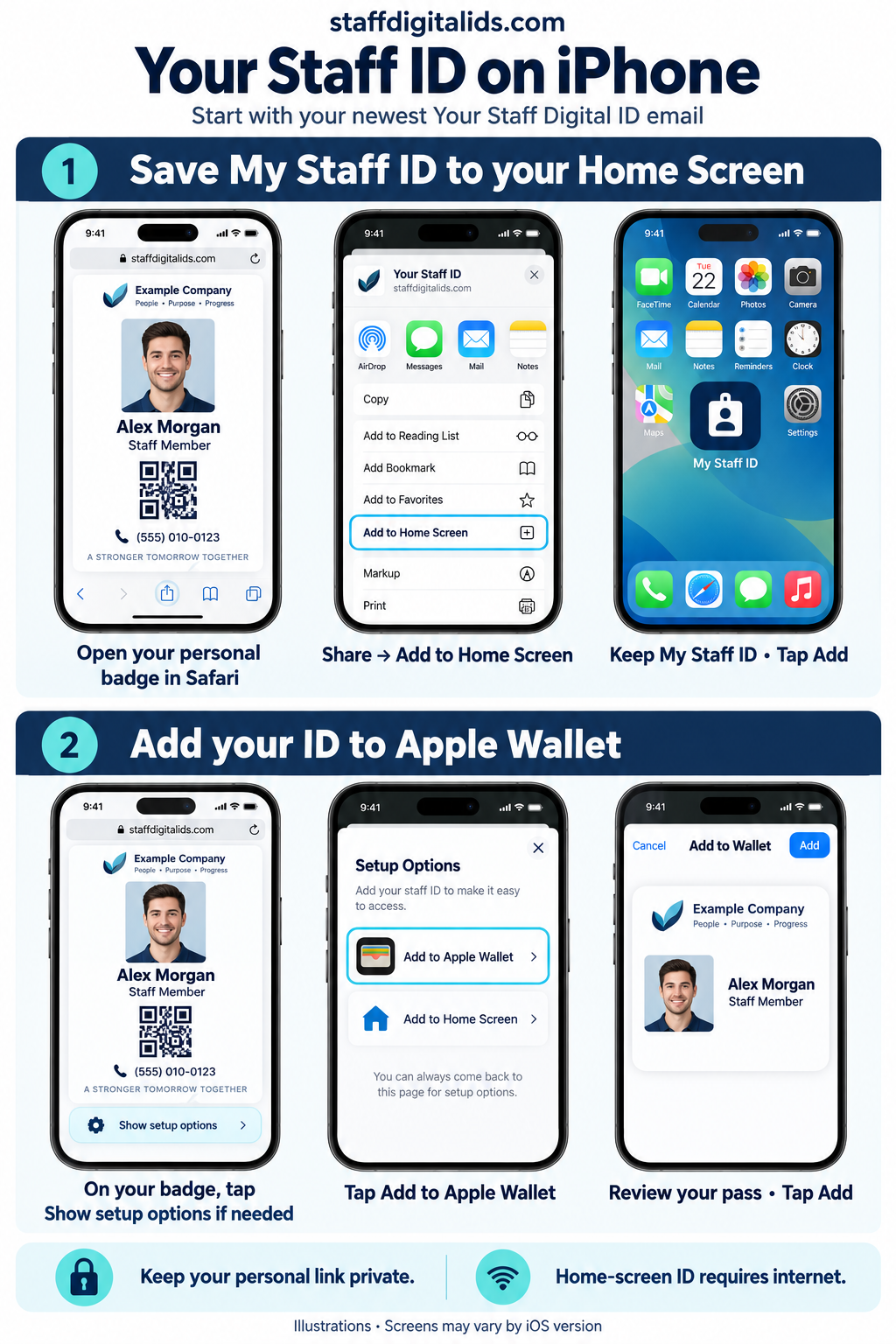
Add the My Staff ID icon
- Open your personal badge link in Safari.
- Tap Share—the square with an upward arrow. Depending on your Safari layout, open the page menu first, then choose Share.
- Scroll down and tap Add to Home Screen.
- Keep the name My Staff ID. Turn on Open as Web App if shown.
- Tap Add. Find the icon on your Home Screen and tap it to check that your personal badge opens.
Add to Apple Wallet
- Open your personal badge on your iPhone.
- If the wallet buttons are hidden, tap Show setup options.
- Tap Add to Apple Wallet.
- Review the pass, then tap Add in the upper-right corner. Follow any additional onscreen instructions.
- Open the Wallet app and select your Staff Digital ID.
Android
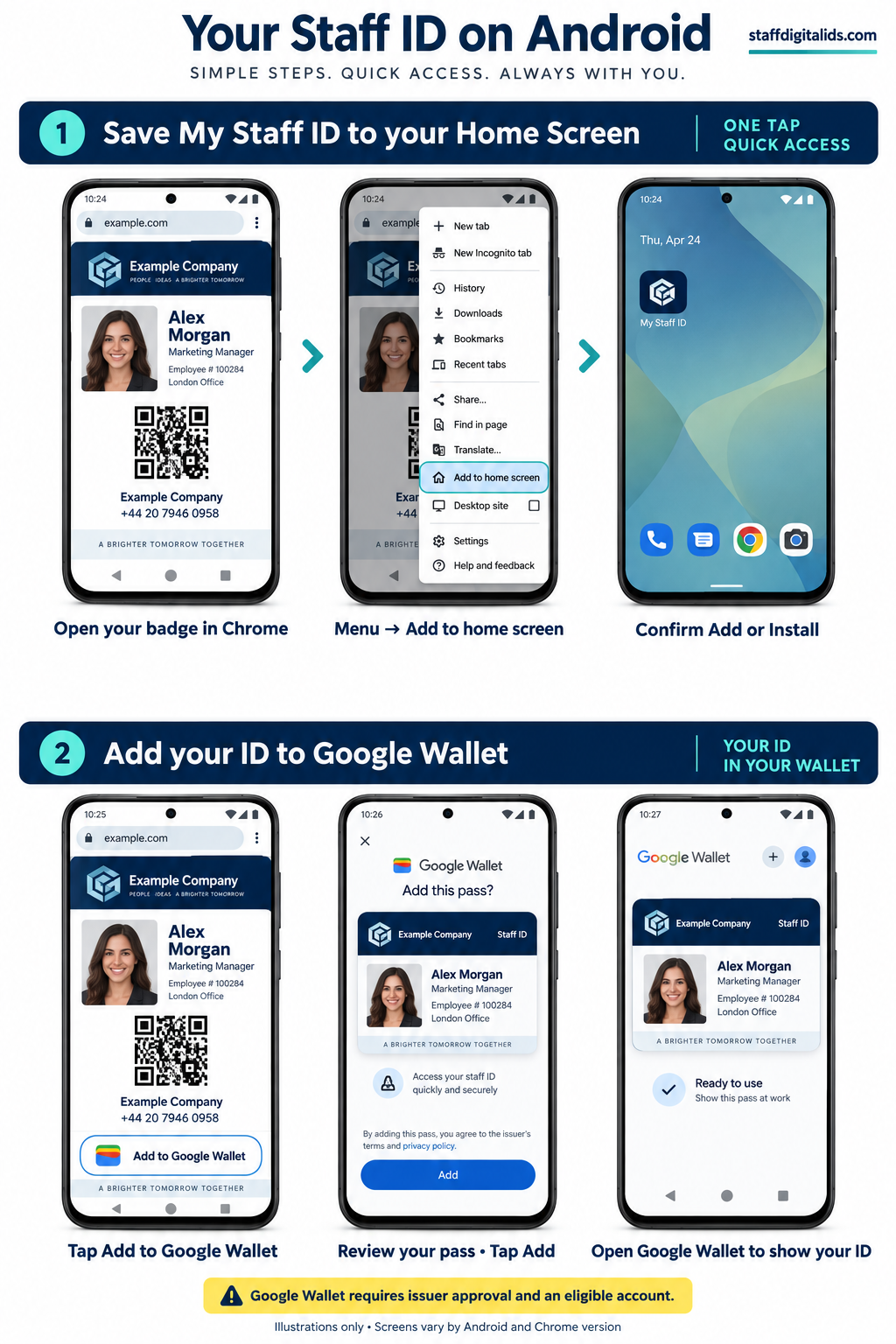
Add the My Staff ID icon
- Open your personal badge link in Google Chrome.
- Tap the three-dot menu beside the address bar.
- Choose Add to home screen or Install and create shortcut, depending on your Chrome version.
- Choose Install or Create shortcut as offered. Keep the name My Staff ID.
- Confirm Add or Install, then find the icon on your Home Screen or in your app drawer.
- Tap the icon and check that your personal badge opens. Close it and reopen it once to test the shortcut.
Add to Google Wallet when available
- Install or update the official Google Wallet app if needed, and sign in to your intended Google Account.
- Open your personal badge in Chrome. Tap Show setup options if needed.
- Tap Add to Google Wallet.
- Check the account and pass details. Confirm Add or Add to Wallet and follow the onscreen instructions.
- Open Google Wallet and select your saved Staff Digital ID.
Need help?
The icon asks for my badge link
Repeat setup from your newest personal badge email. Keep the entire private link intact, including everything after the # symbol.
My badge is unavailable
Check your internet connection. If the message remains, contact your company administrator.
I lost my phone or shared my link
Contact your company administrator promptly and request revocation of the affected home-screen badge link.